Quick answer: Internal linking means adding links from one page of your site to another. Google uses those links to discover pages and understand what they’re about, and it says every page you care about should have a link from at least one other page. Link in context, use descriptive anchor text, and point every link at the page’s canonical URL.
What Is Internal Linking?
Internal linking is the practice of linking from one page on your website to another page on the same domain. Those links help visitors move around your site, and they help Google find pages and understand how they relate. Google’s SEO Starter Guide says “the vast majority of the new pages Google finds every day are through links.”
Not all internal links do the same job. A typical site has several kinds at once:
- Navigational links in the menu, header and footer, which appear on every page
- Contextual links inside the body of an article or product description
- Breadcrumbs, which show where a page sits in the site’s structure
- Automatic links added by a theme or plugin, such as “next post” or “related posts”
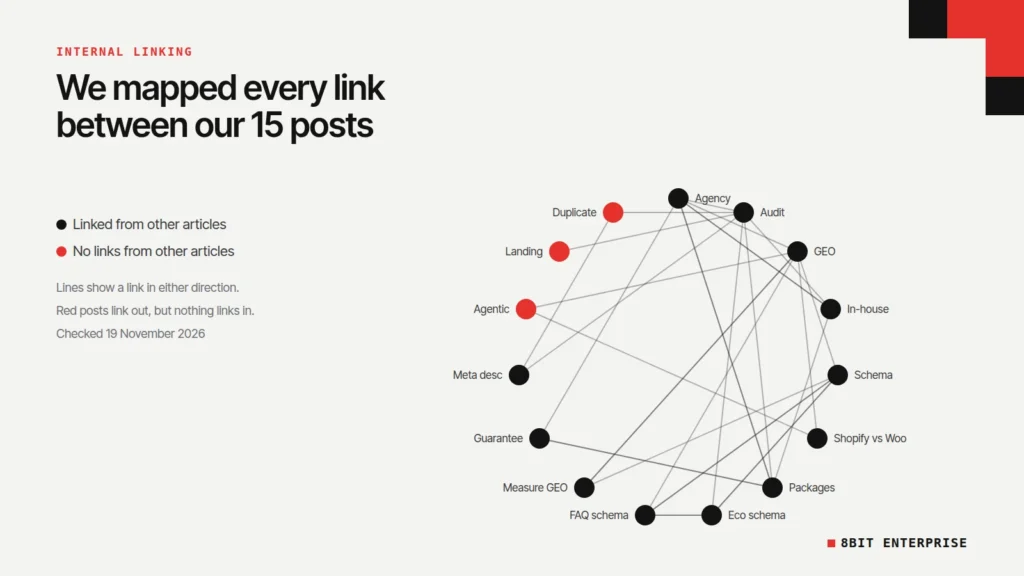
Contextual links are the ones you control article by article, and they’re the focus of this guide. To show what that looks like in practice, we audited every internal link on our own blog and published the results below, including the gaps we found.
TL;DR
- Google says “Every page you care about should have a link from at least one other page on your site.”
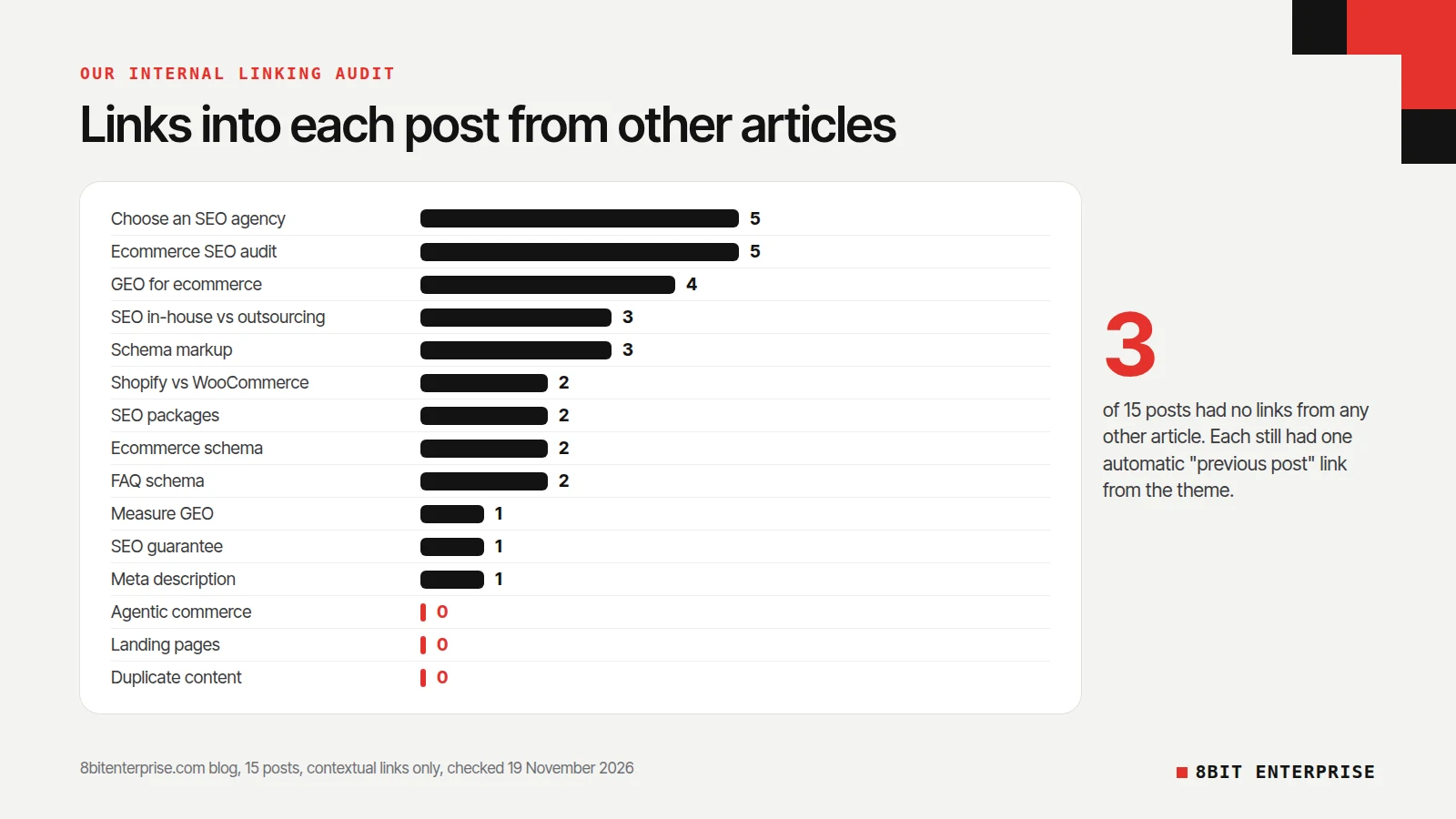
- On our blog, 3 of 15 posts had no links from inside any other article, including our post with the most AI search impressions.
- Google says there’s “no magical ideal number” of links per page.
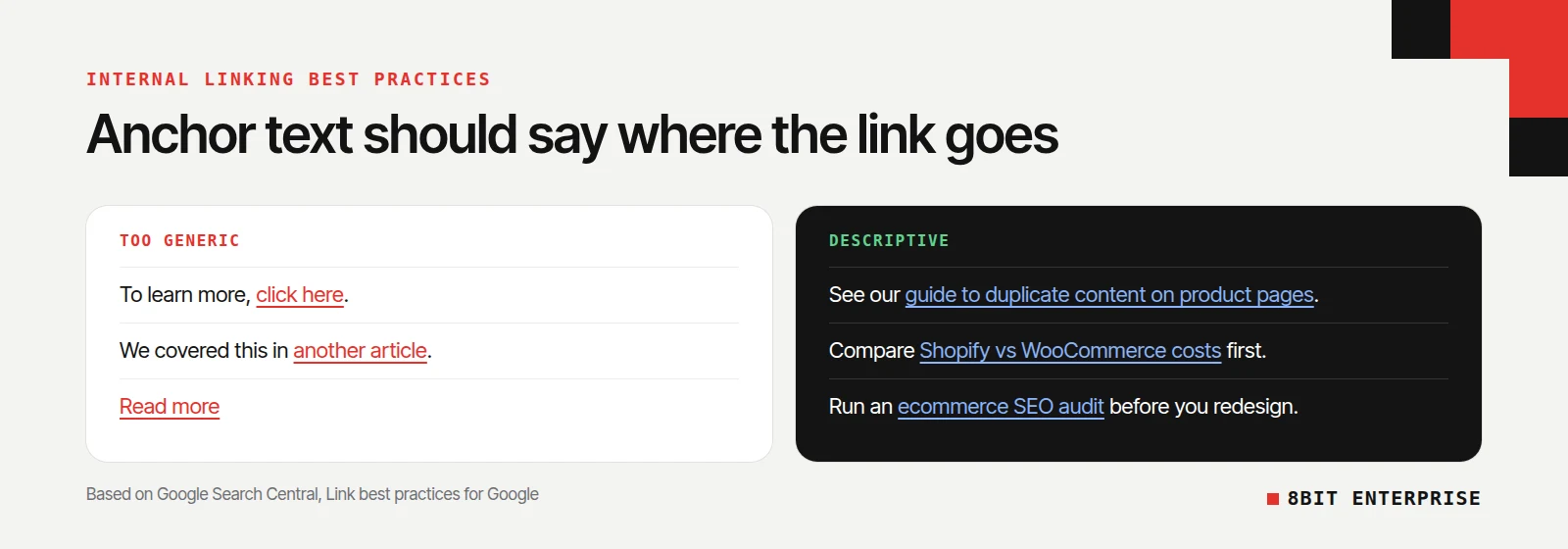
- Anchor text should be “descriptive, reasonably concise, and relevant,” according to Google.
Why Does Internal Linking Matter for SEO?
Internal linking matters because links are how Google finds pages and learns what they’re about. A page with no links pointing to it is hard to discover, and the anchor text on a link tells Google what to expect on the other side. Links also tell Google which version of a page you consider the main one.
Google’s guide to link best practices explains the anchor text side. Better anchor text makes your site easier for people to use, and makes it easier “for Google to understand what the page you’re linking to is about.” The same guide sets the baseline we used for our audit. Every page you care about should have at least one link from another page on your site.
Internal links also affect which URL Google treats as canonical. Google’s canonicalization guidance says that when linking within your site, you should link to the canonical URL rather than a duplicate. We covered why that matters for product pages in our guide to duplicate content SEO.
What We Found When We Audited Our Own Blog
We audited all 15 posts on our blog on 19 November 2026. We pulled each post’s content through the WordPress REST API and counted every link from one article body to another. Then we checked the theme’s automatic links, our blog index and our main pages. Here’s what the numbers showed.
| What we checked | Result |
|---|---|
| Posts audited | 15 |
| Links from one article to another | 31, an average of about 2 per post |
| Posts with no links from any other article | 3 |
| Posts with exactly one link from another article | 3 |
| Most links into a single post | 5 (two posts) |
| Posts that link to no other post | 1 |
| Internal links that were broken or redirected | 0 |
The three posts nobody linked to
Our post on agentic commerce vs traditional ecommerce had no links from any other article. That stood out, because in mid-November Search Console’s Generative AI report showed it had more impressions than any other post on our blog. Our guide to landing pages that convert had none either. The third was our newest post, which simply hadn’t been linked yet.
None of the three was a true orphan page. Our theme adds a link from each post to the post published before it, so every post had exactly one automatic link. But a chain of “previous post” links is decided by publish date, not by topic, so it says little about what a page covers.
Two structural gaps
Our blog index shows 10 posts per page. The five oldest posts only appear on page 2, so they sit three clicks from the homepage instead of two. Our homepage links to the blog index, but neither the homepage nor our services and about pages link to any individual post.
What we’re changing
We’re adding contextual links into the three posts that had none, from the articles that cover related topics. This guide links to two of them already. We’re also linking our Shopify vs WooCommerce comparison out to related posts, since it was the one article that linked to no other post.
How Many Internal Links Per Page Should You Have?
There’s no fixed number. Google’s link guidance says “There’s no magical ideal number of links a given page should contain. However, if you think it’s too much, then it probably is.” The better test is whether each link helps a reader who’s on that page, at that point in the text.
Our own posts averaged about two links to other articles each, which is on the low side for a blog that covers closely related topics. We didn’t set a target number. Instead, we’re going through each post and asking which of our other articles a reader would need next, then adding links where the answer is obvious.
On our blog, the problem wasn’t too many links. It was important pages with too few, because nobody went back to link to them after they were published.
Internal Linking SEO Best Practices
The practices below come straight from Google’s own documentation. Links need to be crawlable, anchor text needs to describe the target page, and each link should point to the version of the page you want indexed. The rest is editorial judgment about what a reader needs next.
- Use real links. Google says it can “generally” only crawl a link that is an
<a>element with anhrefattribute. Links that only work through JavaScript click events may not be followed. - Write descriptive anchor text. Google lists “Click here”, “Read more” and “website” as too generic. A good test is to read only the anchor text and check you still know where it leads.
- Don’t stuff keywords into anchors. Google’s guide warns that keyword stuffing “is a violation of our spam policies.”
- Link to the canonical URL. Link to /products/name, not to a collection path, a tracking URL or a redirect.
- Give links context. Google notes that “the words before and after links matter.”
- Don’t nofollow your own pages. Google describes nofollow as a tool for sources you don’t trust, paid links and user-generated links.
How to Do an Internal Linking Audit
An internal linking audit shows which pages get links, which don’t, and which links are broken or point to the wrong URL. For a small site you can do it in an afternoon with free tools. The goal is a list of pages that need more links and a list of links that need fixing.
- List every page you care about. Your XML sitemap is the easiest source.
- Crawl the site. The free version of Screaming Frog’s SEO Spider crawls up to 500 URLs and reports internal links for each page.
- Count inbound links per page. Sort by the number of internal links pointing in. Pages at zero or one are your priority.
- Separate contextual links from automatic ones. A page linked only by the menu, footer or a “next post” widget still needs links from related content.
- Check link targets. Fix links that return errors, and update links that point at redirects.
- Check click depth. Note pages that take more than three clicks to reach from the homepage, often because of pagination.
- Add links and recheck. Add contextual links from related pages, then recrawl to confirm.
Search Console’s Links report can help with step 3. Google’s Links report help page explains that its “Top linked pages” table for internal links shows which pages are linked most from within your own site. It’s a sample rather than a full list, so treat it as a quick check.
Internal Linking for Ecommerce Stores
Internal linking on an online store works the same way, but the volume is higher and more of it happens automatically. Menus, collection grids, filters and “you may also like” blocks create most of the links. Your job is to make sure they point to the right URLs and that important products don’t depend on a single path.
Three places deserve attention:
- Collection and category pages. These link to every product in them, which makes them natural hubs. Link to them from your menu and from relevant blog posts.
- Product URLs inside collections. On Shopify’s Dawn demo store, collection pages link to the main /products/ URL, which matches the canonical tag. Custom themes or apps sometimes link to collection paths instead, which works against the canonical.
- Blog to product links. A buying guide that links to the relevant collection or product helps readers and gives those pages contextual links that menus can’t provide.
For large catalogs, prioritize best-selling and seasonal products. A product that’s only reachable through page 9 of a collection is hard for shoppers to reach and gives Google only one path to it.
How to Add an Internal Link in WordPress
In the WordPress block editor, select the text you want to turn into a link and press Ctrl + K (Cmd + K on a Mac). WordPress’s keyboard shortcut list calls this “Convert the selected text into a link.” Then type the name of the post or page you want to link to and pick it from the search results.
There’s also a faster shortcut. Type two opening square brackets, [[, while writing, and WordPress opens a search box of existing content to link to. It’s useful when you’re adding several links to related posts.
On Shopify, the rich text editor for products, collections, pages and blog posts has a link button in its toolbar. Paste the page URL, preferably the main /products/ or /collections/ URL.
Internal Linking Tools Compared
Internal linking tools fall into two groups: crawlers that show you the current state of your links, and plugins that suggest new links while you write. For a small site, one free crawler plus Search Console is enough to start.
| Tool | What it’s for | Cost |
|---|---|---|
| Google Search Console Links report | Sample of your most internally linked pages | Free |
| Screaming Frog SEO Spider | Full crawl with inbound link counts per page | Free up to 500 URLs, £199 a year for more |
| Semrush Site Audit | Reports orphaned pages, broken links and crawl depth | Paid plans |
| Yoast SEO Premium | Suggests posts to link to while you write in WordPress | Paid plugin |
| A short script and your CMS API | Exact link counts between articles, as we did here | Free, needs a developer |
Common Mistakes With Internal Linking
The mistakes below share one cause: adding links once and never revisiting them. New posts get linked from nothing, old posts keep linking to pages that have moved, and important pages sink deeper into pagination. Each one either turned up on our own blog or is covered in Google’s guidance.
- Publishing without linking back. New posts start with no links from older content unless someone adds them.
- Relying on automatic links. “Next post” and “related posts” blocks don’t replace links chosen for relevance.
- Generic anchor text. “Click here” tells Google nothing about the target page.
- Linking to redirects or duplicates. Each link should point to the final, canonical URL.
- Burying pages in pagination. Older posts can drift three or more clicks away from the homepage.
Frequently Asked Questions
How many internal links is too many?
Google doesn’t set a limit. Its link guidance says there’s no ideal number of links a page should contain, and that “if you think it’s too much, then it probably is.” A practical test is whether every link helps the reader at that point in the text. If you’re adding links only to hit a count, stop.
Should internal links be nofollow?
No, not for normal pages. Google describes nofollow as a way to qualify links to sources you don’t trust, paid links and links added by users. Your own pages don’t fall into those groups. If you don’t want a page in search results, use a noindex tag on that page instead.
What is an orphan page?
An orphan page is a page with no internal links pointing to it. Visitors and Google can only reach it through a sitemap, an external link or a typed URL. Google’s guidance says every page you care about should have a link from at least one other page on your site, so orphan pages are worth fixing first.
Does internal linking help SEO?
Yes. Google says it finds most new pages through links and uses anchor text to understand what linked pages are about. Internal links also help Google pick your preferred URL when duplicates exist. They don’t guarantee rankings, but a page without them is harder for both people and Google to find.
How often should you audit internal links?
It depends on how often you publish. As a rule of thumb, sites that publish weekly or daily benefit from a quick check every month and a full crawl every quarter:
- Link each new post from 2 or 3 related older posts
- Recheck pages with zero or one inbound link
- Fix links that point to redirects after URL changes
Conclusion
Internal linking is one of the few SEO tasks that’s entirely in your control. Make sure every page you care about has links from related content, write anchor text that describes the target, and point every link at the canonical URL. If you’d like a second opinion on your own site’s structure, our SEO team can run the same audit for you.